Contents
Enabling Inventory Management
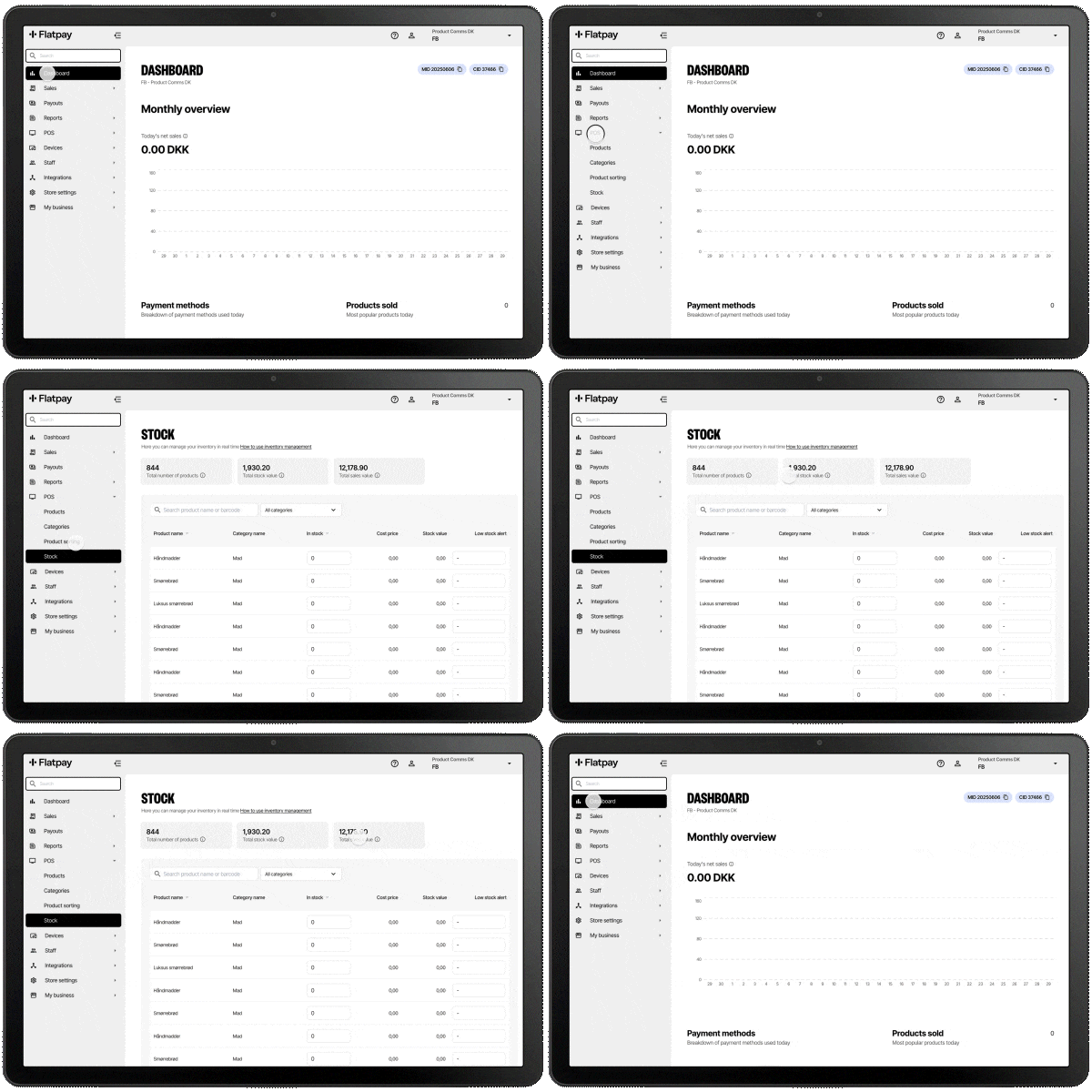
- Log in to the customer portal.
- Click on POS.
- Click on Stock.
- Click Enable Inventory.
Once activated, you'll be able to see which products are using inventory tracking.
Search Functions – Find Your Products Quickly
You can search by both product names and barcodes, making it easy to find the exact product you need without scrolling through long lists. Relevant results appear instantly whether you search by name or barcode.
Filter View – Get a Clear Overview of Your Products
Use the filter function to sort products by category. This provides a quick overview of specific product groups and makes it easier to identify products that require editing or restocking.
Quick and Easy Inventory Adjustments
Update stock levels directly in the product field with a single click. Changes are saved automatically, making inventory management faster and more efficient.
Enable Stock Tracking for Your Products
When creating a new product, select Yes to enable inventory tracking and set an initial stock level. If you choose No, inventory tracking cannot be enabled later.
Enable Low Stock Notifications
On Mobile
Click the notification bell and choose when you would like to be reminded to reorder products.
On Desktop
Set a threshold for each product under Low Stock Alert. When inventory reaches this level, an email notification will be sent to the email address registered in the customer portal.
Was this article helpful?
That’s Great!
Thank you for your feedback
Sorry! We couldn't be helpful
Thank you for your feedback
Feedback sent
We appreciate your effort and will try to fix the article