Table of contents
- Registration and reporting obligations for cash register systems in Germany
- What needs to be reported?
- Reporting deadlines
- Where is the report submitted?
- How to register your Flatpay cash register system on ELSTER
- Need support?
Registration and reporting obligations for cash register systems in Germany
As part of Germany’s initiative to strengthen digital security and tax transparency, Section 146a paragraph 4 of the German Fiscal Code (AO) requires companies to electronically report their electronic recording systems, such as cash register systems, via the ELSTER portal.
If you are a business owner in Germany and use a cash register system, this legal obligation applies to you.
Failure to comply with this registration requirement constitutes an administrative offence and may result in a fine. It is therefore essential that companies comply with these requirements in order to avoid penalties.
What needs to be reported?
Companies in Germany are required to submit a report via ELSTER if they:
- put a new electronic cash register system into operation,
- replace, update, or take an existing system out of operation.
The report is submitted using the designated form “Notification of electronic recording systems (Section 146a paragraph 4 AO)”, which is available in the “Mein ELSTER” portal at www.elster.de.
Reporting deadlines
For all cash register systems that are put into operation, changed, or decommissioned after July 1, 2025, a reporting obligation applies within one month from the respective date.
⚠️ IMPORTANT: If you also use an mPOS, this must also be registered in the ELSTER portal.
Where is the report submitted?
Registration is carried out exclusively electronically via the “Mein ELSTER” online portal.
How to register your Flatpay cash register system on ELSTER
This is a step-by-step guide to registering your Flatpay cash register system with ELSTER. For the registration process, we recommend using a computer or laptop. If possible, please forward this guide to your tax advisor so that he/she can complete the registration for you.
Step 1: Log in to the Flatpay portal
Open the Flatpay portal and log in with your access details.
Step 2: Navigate to “Devices”
Click “Devices” in the left-hand menu and then select “Point of Sale”.

Step 3: Overview of your cash register systems
A list of your registered cash register systems will now appear.
Each individual device must be reported separately to ELSTER.
Step 4: Open cash register details
Select the cash register system you want to register in order to view the details.
Step 5: Enter the taxpayer’s details
Click “Edit” and enter the taxpayer’s details. Here is a guide from ELSTER on how to enter your tax number correctly. Once you have entered the information, click “Save changes”. This information will be saved and will also be available to you when using multiple cash register systems.
Step 6: Download XML file
Click “Download XML”. This downloaded file contains all the information required for the ELSTER report.
Now switch to ELSTER:
Step 7: Log in to ELSTER.de
Log in with your ELSTER access details.
Step 8: Form selection
Click “Forms & Services” in the left-hand menu, then click “All forms”.


Step 9: Select the appropriate form
Scroll to “Other forms” and select “Notification of electronic recording systems (Section 146a paragraph 4 AO )”.


Step 10: Upload XML file
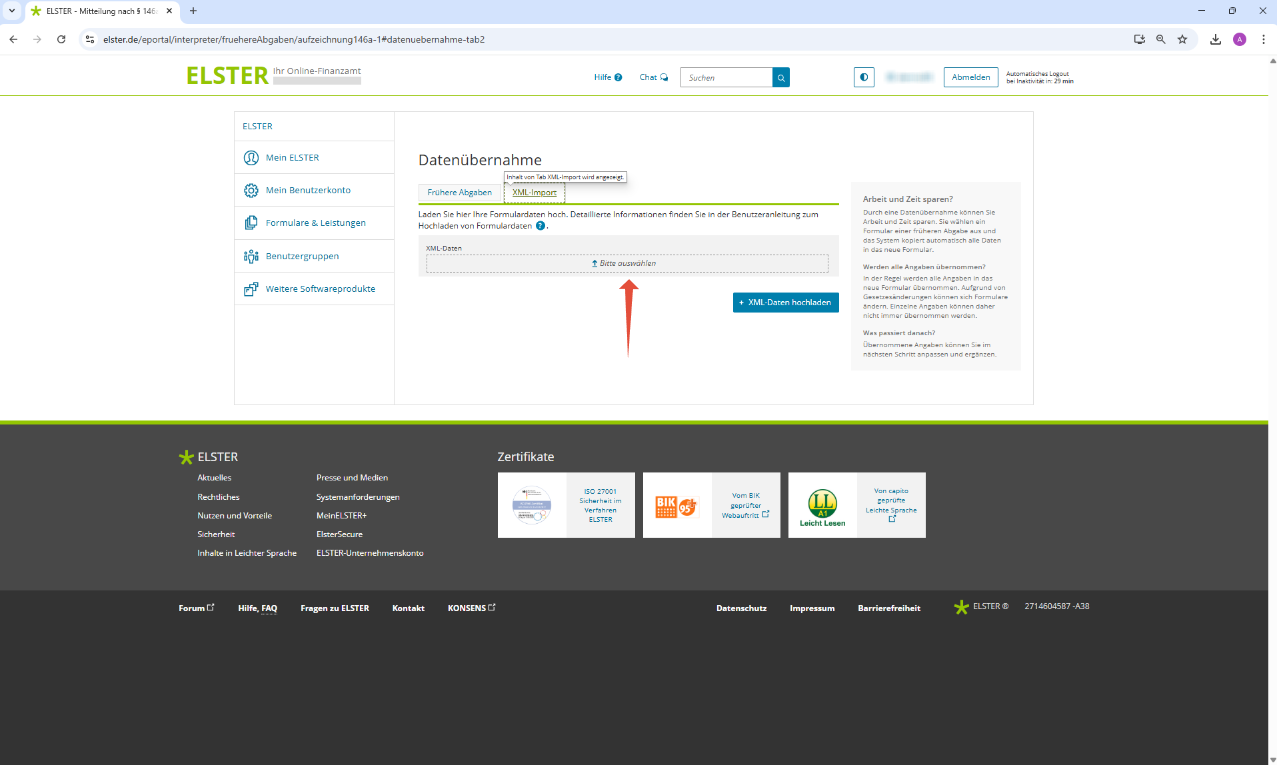
Click “Next”, then look for the “XML import” section in the middle area of the page.
Click on it and upload the XML file previously downloaded from the Flatpay portal.


Step 11: PDF confirmation
After successfully uploading the XML file, you will receive a PDF confirmation. Be sure to save it locally on your device.
Step 12: Reporting multiple cash register systems
Repeat this process for each individual Flatpay cash register system.
Need support?
Flatpay is always here to help.
Feel free to contact us at:
Support@flatpay.de
(+49) 30 25555555
Further information can also be found in the official user guide from the German Federal Ministry of Finance, available at: www.elster.de.
Was this article helpful?
That’s Great!
Thank you for your feedback
Sorry! We couldn't be helpful
Thank you for your feedback
Feedback sent
We appreciate your effort and will try to fix the article