Contents
The Tables feature is where your mPOS really shines. There are a few steps required to add and manage tables on your device.
Reminder: If you already have a POS with tables enabled, all you need to do is activate the feature in your mPOS app settings. Your existing table setup will automatically be available on your mPOS.
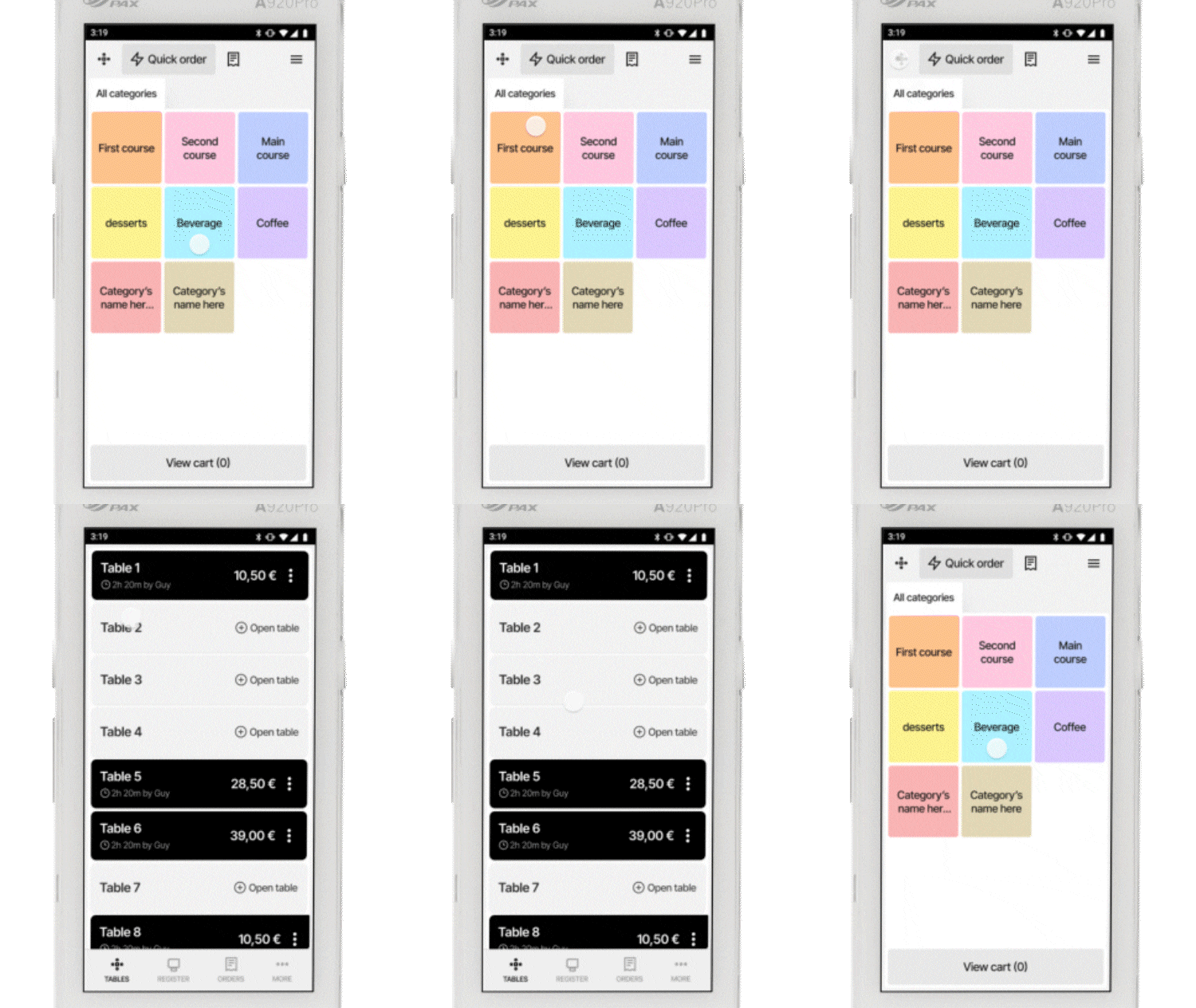
Enabling Tables on Your mPOS
- Open App Settings from the burger menu in the top-right corner of the main screen.
- Find the Tables setting and enable it.
- A new Tables tab will appear on the mPOS home screen.
Adding and Managing Tables
- Log in to the Flatpay Customer Portal
If this is your first time logging in, you will receive your login details by email. - Go to POS and select Tables
- Use the Actions button to add a table
Enter the table name and seating capacity. - The table is now added
Update Your mPOS with New Table Settings
After setting up your tables in the customer portal, you'll need to sync the changes with your mPOS to ensure your staff can access the latest table layout.
- Go to App Settings and press Refresh.
- Your mPOS is now synced with the customer portal.
Start Using Tables for Orders
You can now access the Tables view from the mPOS home screen and start assigning products to tables. When a table is ready to pay, press View Cart for that table, select the payment method, and complete the transaction. The table will automatically reset once the order has been completed.
Was this article helpful?
That’s Great!
Thank you for your feedback
Sorry! We couldn't be helpful
Thank you for your feedback
Feedback sent
We appreciate your effort and will try to fix the article