Contents
Making a sale and refund works similarly on mPOS to your POS.
Here are step-by-step instructions on how to perform a sale and a refund on mPOS:
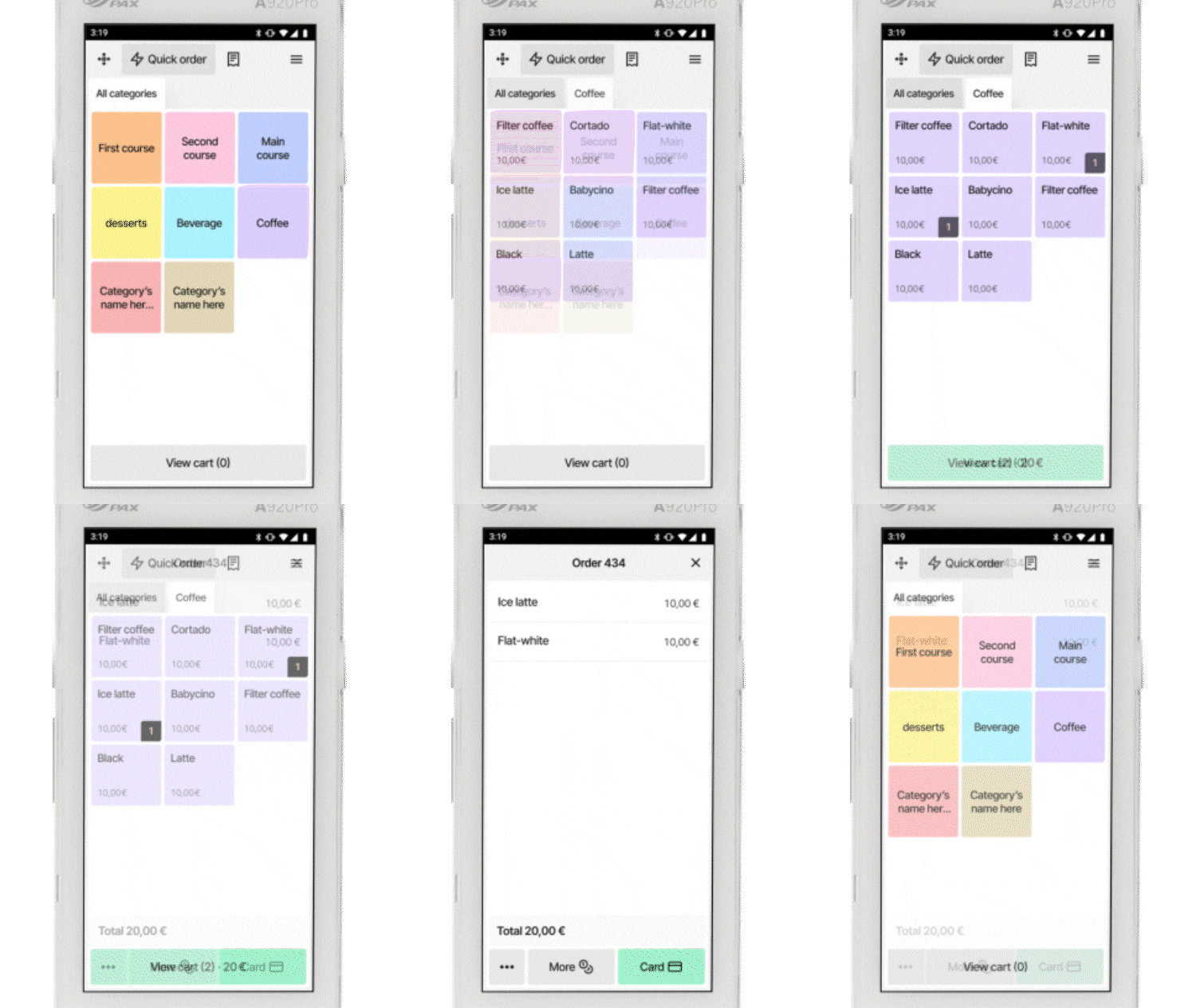
How to Make a Sale
- Click on your category
This will take you to the products under that category. - Click on the product
The product will be transferred to the cart. - Click on View Cart
This allows you to review the selected products. You can remove items by swiping left on the product you want to remove. - Choose a payment method
Select card or More for other payment methods, discounts, or split payments, and complete the sale.
Remember: To accept cash payments, you must enable this option in your App Settings. Changing this setting requires you to end your current day.
How to Make a Refund
- Go to your mPOS Orders History
You can find this in the burger menu in the top-right corner. - Select the order that needs to be refunded
- Select individual items or the entire order for refund
- Provide a refund reason
- Choose the refund method (cash or card).
Secure Refunds
As an employer, you can enable Secure Refunds for specific staff members in the Flatpay Portal. When enabled, the staff member must enter their personal PIN to authorise a refund.
How to Discount the Price of a Single Item in the Basket
- Place a product into the basket as normal
- Press the product in the basket to adjust its price
- Enter either a percentage or fixed-price adjustment and press Confirm
How to Save an Order for Later
If you need to save an order for a later sale:
- Add products to your order.
- Go to View Cart.
- Press the submenu at the bottom of the mPOS interface (three vertical dots).
- Press Save Order.
- The order will appear in your saved orders under the receipt icon at the top of the mPOS home screen.
- Select the saved order and complete the sale as normal.
How to Split a Payment
- Add products to your order
The products will be added to the cart. - Click on View Cart
This allows you to review the selected products. - Press the submenu at the bottom of the mPOS interface (three vertical dots)
This opens additional options such as Save Order, Discount, and Refund. - Press Split Payment
You can split the payment by individual products or by the number of paying customers.
Need Further Assistance?
If you encounter any issues or have further questions, please contact our support team at:
+44 2080289990 or info@flatpay.co.uk
We are available 24/7.
Was this article helpful?
That’s Great!
Thank you for your feedback
Sorry! We couldn't be helpful
Thank you for your feedback
Feedback sent
We appreciate your effort and will try to fix the article