This article is not available in Finnish, view it in English
This article helps you set up and manage tips on your terminals. You can customise tip percentages and enable or disable tips pr. terminal.
Accessing tip settings
- Log in to the Portal.
- Go to Store settings → Tips.
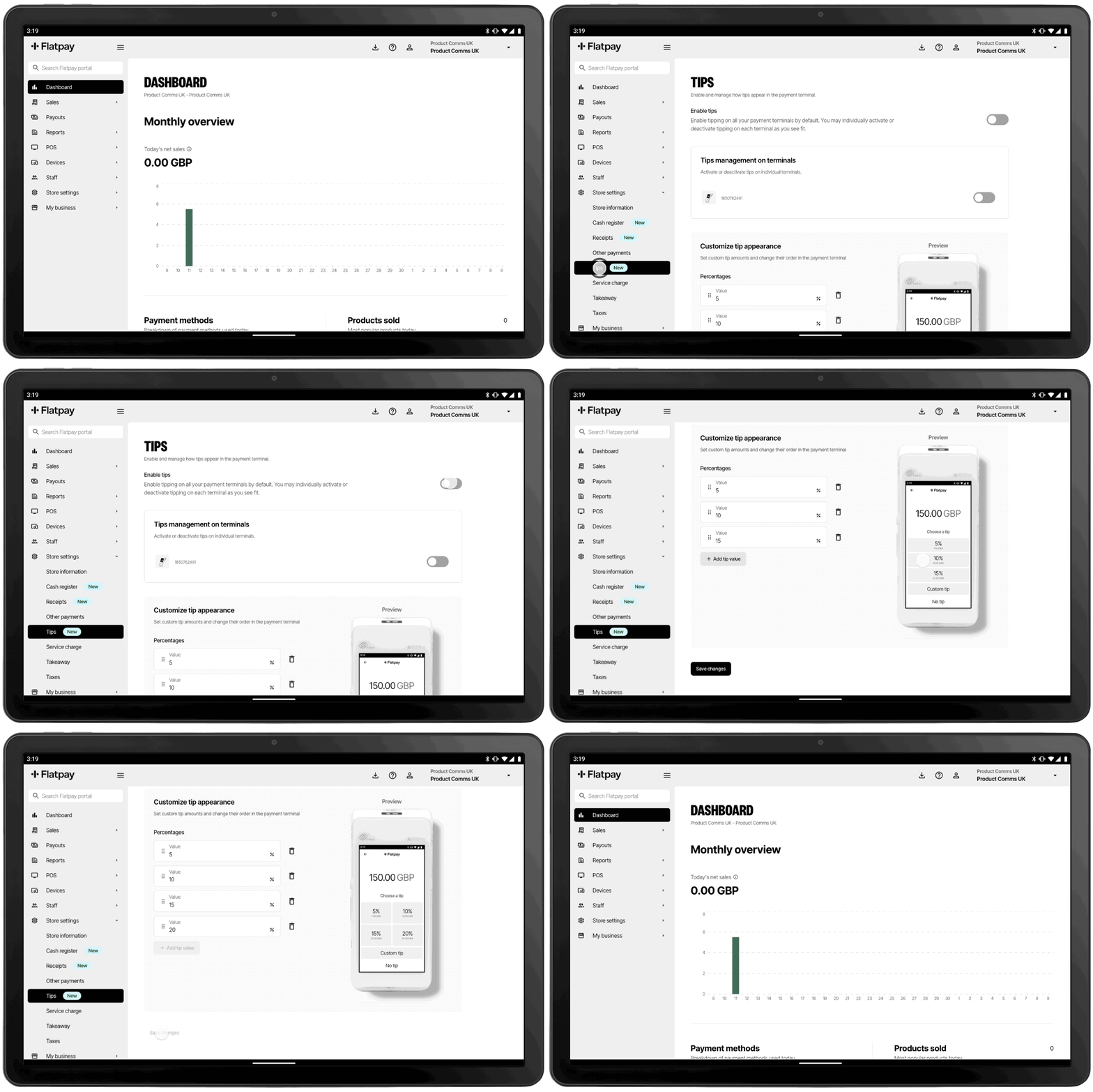
Enabling tips
- Turn on the Enable tips toggle to activate tips on your Flatpay terminals.
- In the Tips management on terminals section, choose which individual terminals should have tips enabled or disabled by using the toggle next to each terminal.
- Enabled terminals will prompt customers to leave a tip during checkout, while disabled terminals will not display the tip option.
Customizing tips
- Scroll down to the Customize tip appearance section to set custom tip amounts.
- Drag and drop them to change their order of appearance on the payment terminal.
Saving changes
Once you’ve configured your tip settings, make sure to save your changes in the customer portal.
If you're configuring tips on a Flatpay POS: Remember to sync these changes: on your POS, go to Settings, then update data from the Refresh data from Portal.
Was this article helpful?
That’s Great!
Thank you for your feedback
Sorry! We couldn't be helpful
Thank you for your feedback
Feedback sent
We appreciate your effort and will try to fix the article