This guide provides instructions on how to open and close your workday in your POS system.
Opening Your Day
Turn on your POS and log in
Enter your ID and PIN when prompted.
Count the cash
Begin by counting the cash in your cash drawer at the start of your shift.
Press the "Set Cash" button
Press the "Set Cash" button to begin setting up your cash drawer.

Enter the cash amount
Manually enter the amount of cash you counted into the system.
Press "Start the Day"
After entering the correct amount, press "Start the Day" to complete the setup and begin your day.
Closing Your Day
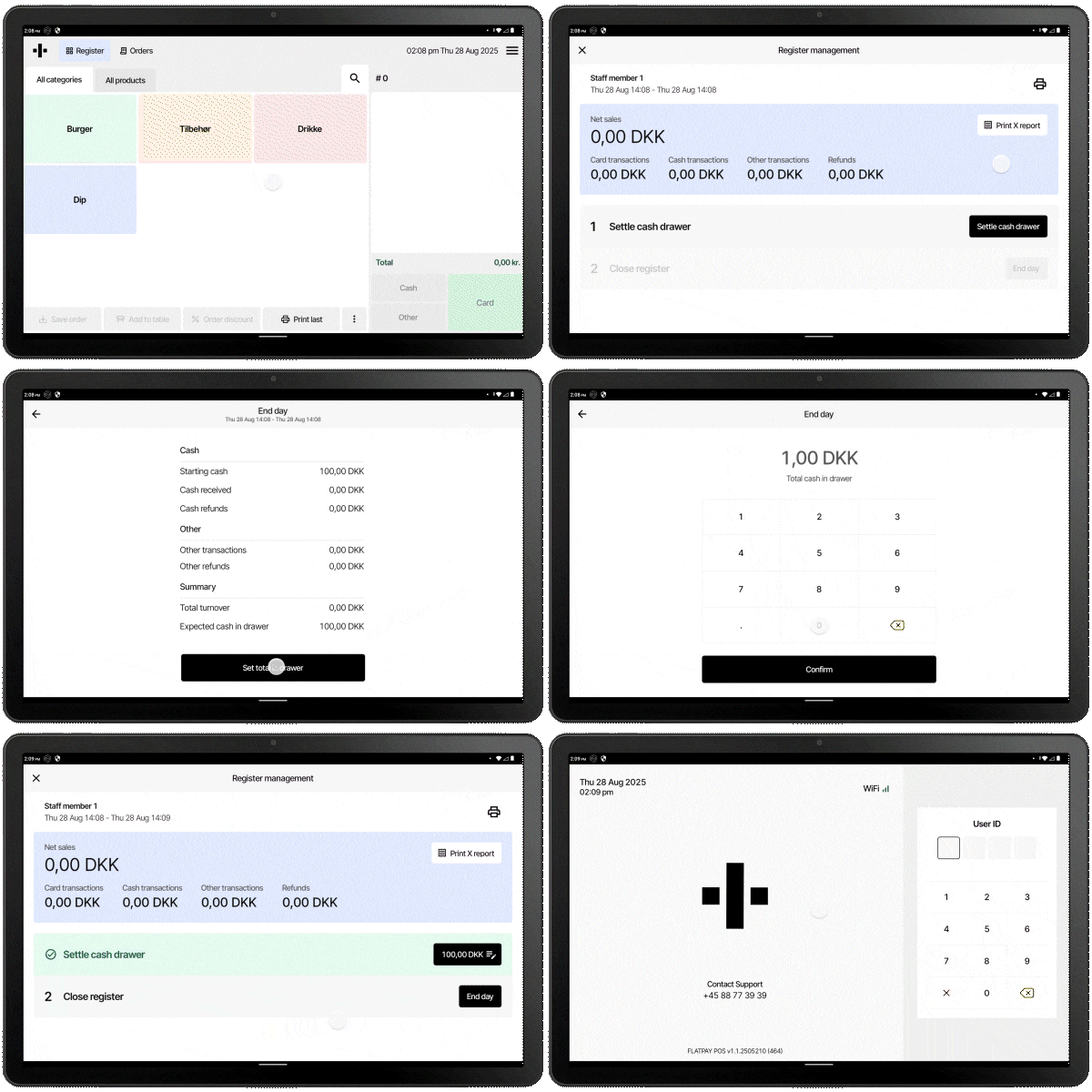
Go to "Drawer Management"
Access Drawer Management from the menu in the upper-right corner of your POS.
Press "Settle Cash Drawer"
This will give you an overview of today's transactions.
Press "Set Total in Drawer"
Count your cash, enter the amount, and press confirm.
Check Your Transaction Overview
Once verified, you can press End Day.
Automatic Z Report
A Z Report will automatically be printed and will also appear in your portal.
Understand Your Printed End-of-Day Report
When you end your day on your POS, a report is automatically printed with an overview of the day called the End of Day Report. All of these reports can also be found in the portal: HERE.
Understanding Your Printed End of Day Report
The report is divided into several important sections:
- Sales Overview
All the most important numbers of the day, such as revenue before and after discounts and refunds, collected VAT, and sales excluding VAT. - Payment Distribution
All your transactions divided into card, cash, and other payment methods. - VAT Specification
A full overview of the applied VAT rates and their totals. - Cash Register
Your expected cash balance and cash received. - Statistics
Number of sales orders, refunded orders, surcharge, and tips for the day.
Need Further Assistance?
If you encounter any issues or have further questions, please contact our support team at:
+44 2080289990 or info@flatpay.co.uk
Was this article helpful?
That’s Great!
Thank you for your feedback
Sorry! We couldn't be helpful
Thank you for your feedback
Feedback sent
We appreciate your effort and will try to fix the article