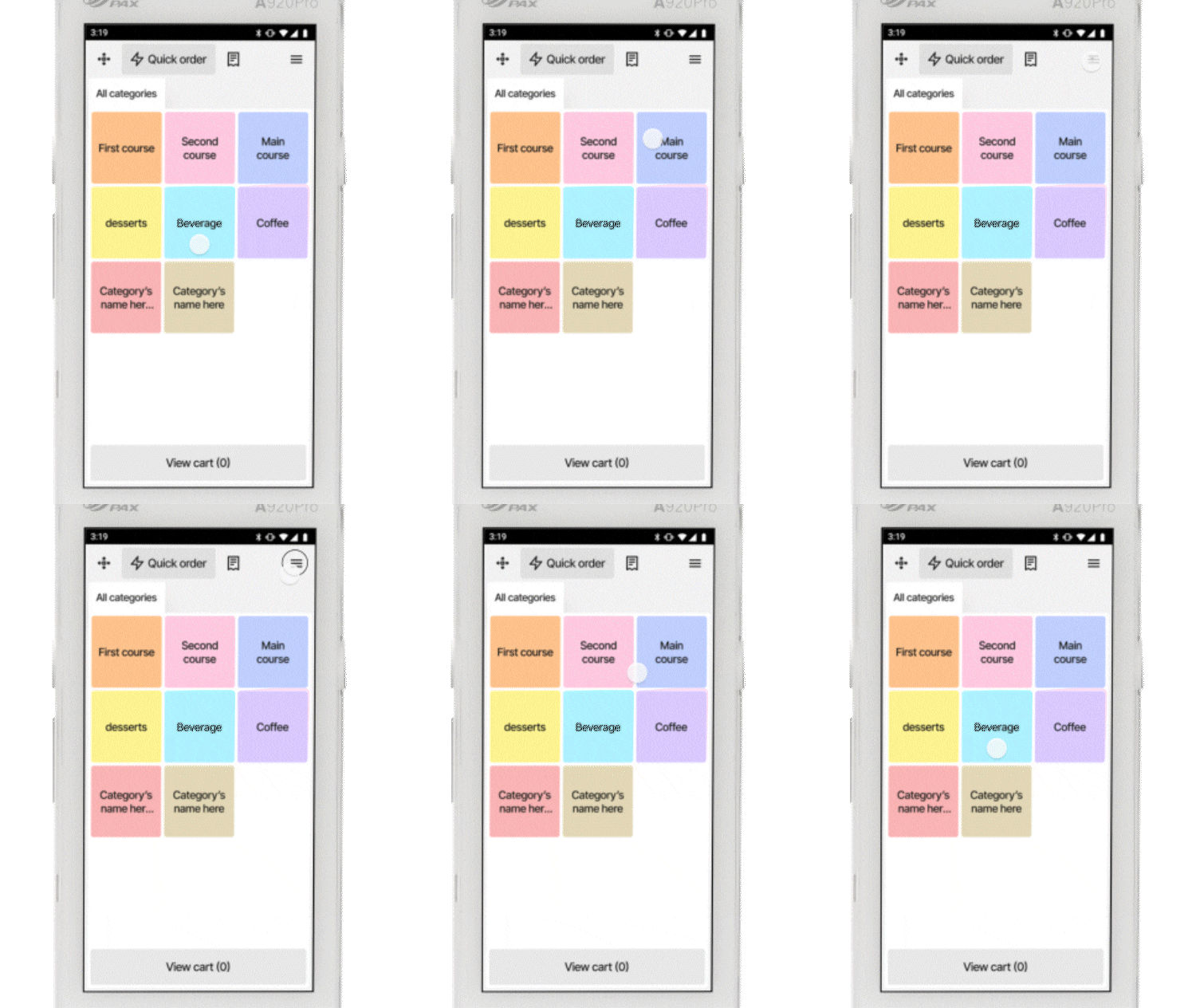
For ease of access, we have designed the user interface to resemble the Flatpay POS system. It's important to note that the menu is slightly different. To access the mPOS menu, click the burger icon in the top-right corner of the main mPOS screen.
End Day
Used to complete your daily settlement and print your daily report at the end of the day. Here's a full guide on how to start and end your day on mPOS.
Reports
In the Reports section, you can access:
- Z Reports from connected terminals
- X Reports from the mPOS
- Cashier Reports from the mPOS
Receipt List
In this section, you can access all recent orders.
When viewing an order, you can:
- See all details from the receipt
- Reprint the receipt
- Email the receipt
App Settings
The App Settings section allows you to customise your Flatpay mPOS to suit your business.
Keep in mind: The available options are more limited than on the standard POS. Here's a full article on POS settings.
Device Settings
The Device Settings section includes essential connectivity options, such as WiFi and cellular data settings.
Logout
Signs you out of the mPOS system and requires you to log in again using your staff credentials created in the portal.
Was this article helpful?
That’s Great!
Thank you for your feedback
Sorry! We couldn't be helpful
Thank you for your feedback
Feedback sent
We appreciate your effort and will try to fix the article