Contents
To start creating categories and products, first go to the FLATPAY PORTAL.
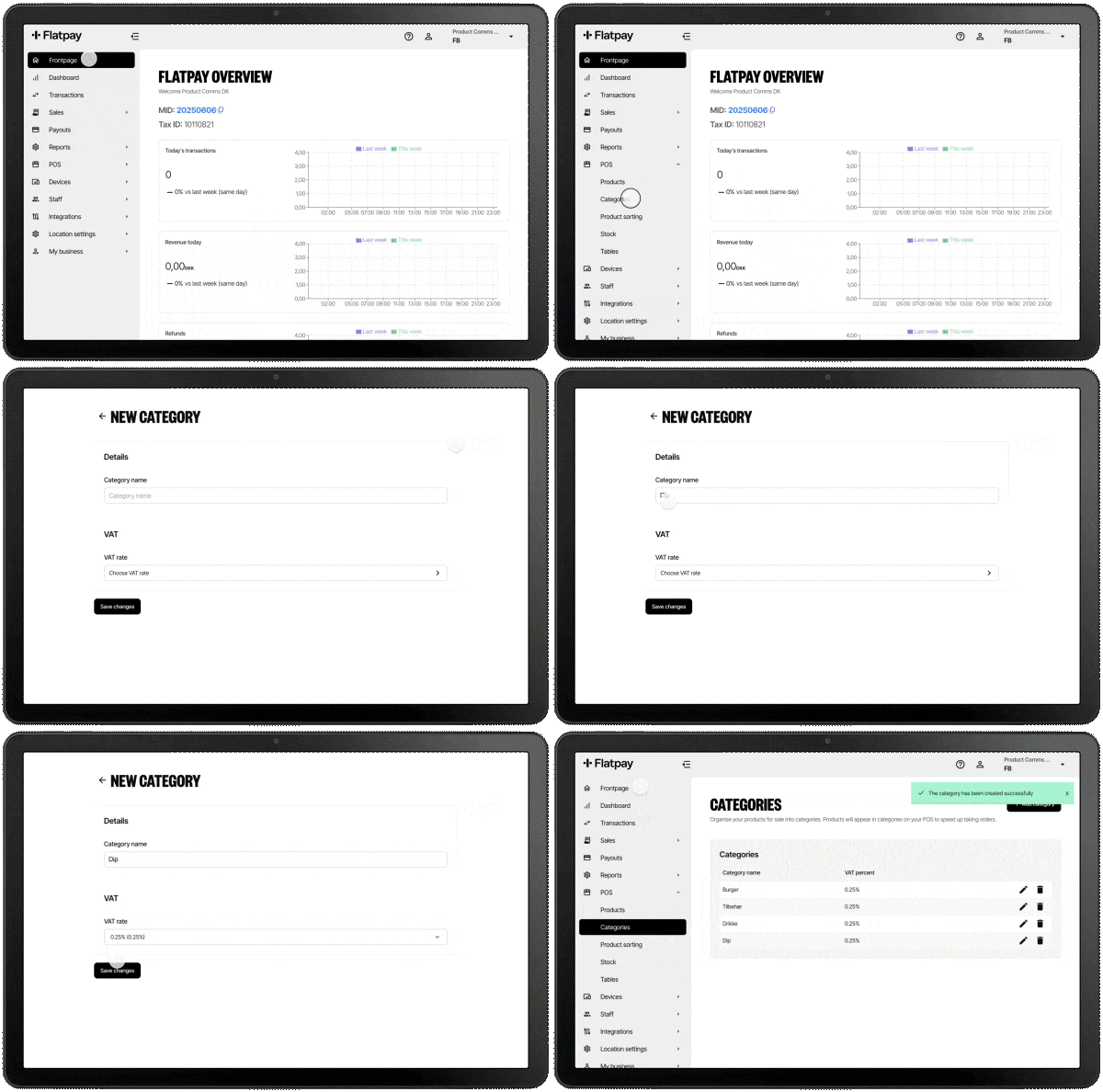
Creating a Category
- Go to POS through the menu on the left.
- Go to Categories.
- Click Add Category.
- Enter the category name and VAT rate.
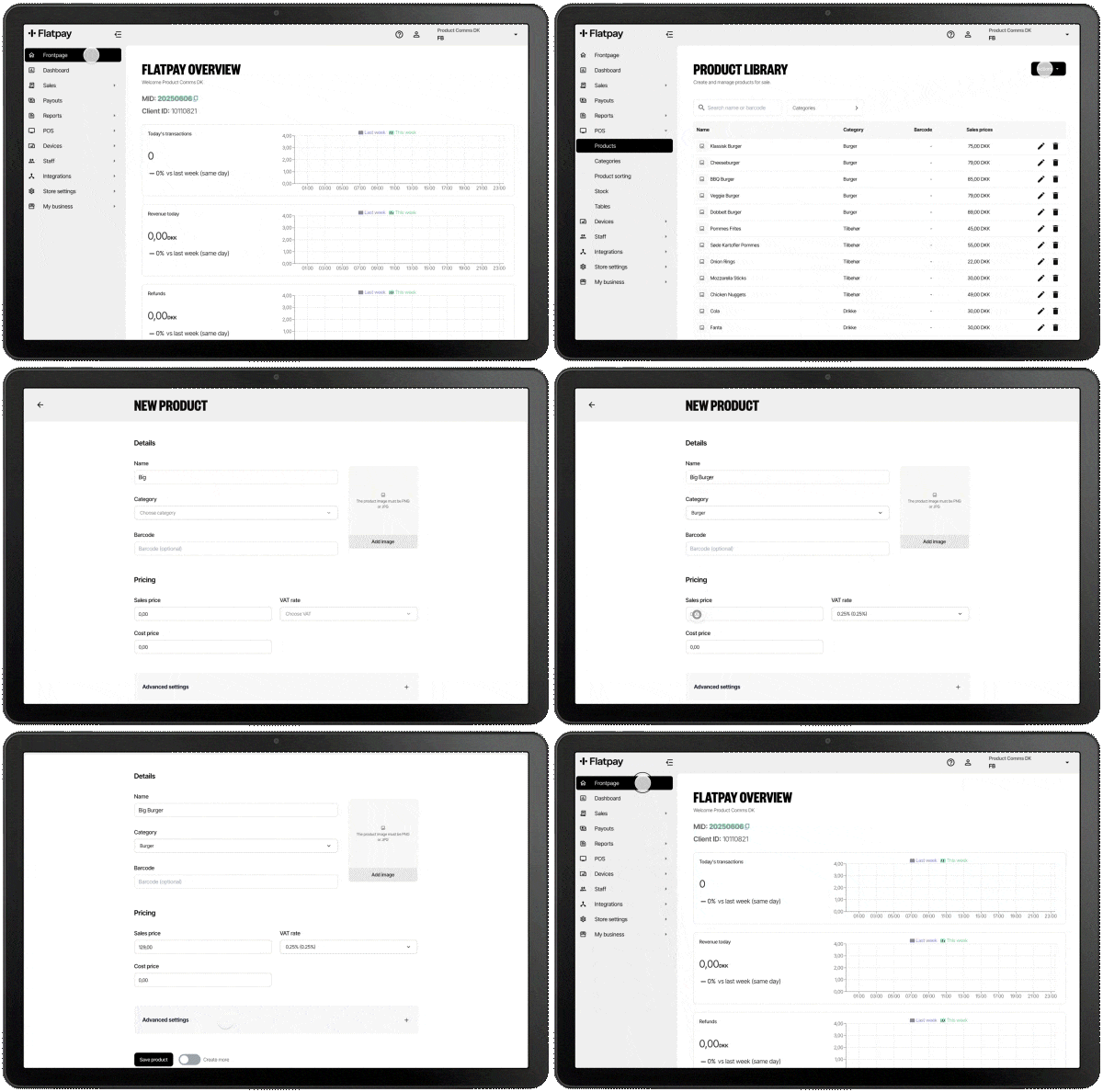
Creating a Product
- Go to POS through the menu on the left.
- Go to Products.
- Click Add Product under Actions.
- Fill out the product details and make sure to select the correct category and VAT rate.
- Remember to add allergens and mark popular products as Favorites. They will then appear in the Favorites tab on the POS.
- You can also add a product image. See our full guide on product images.
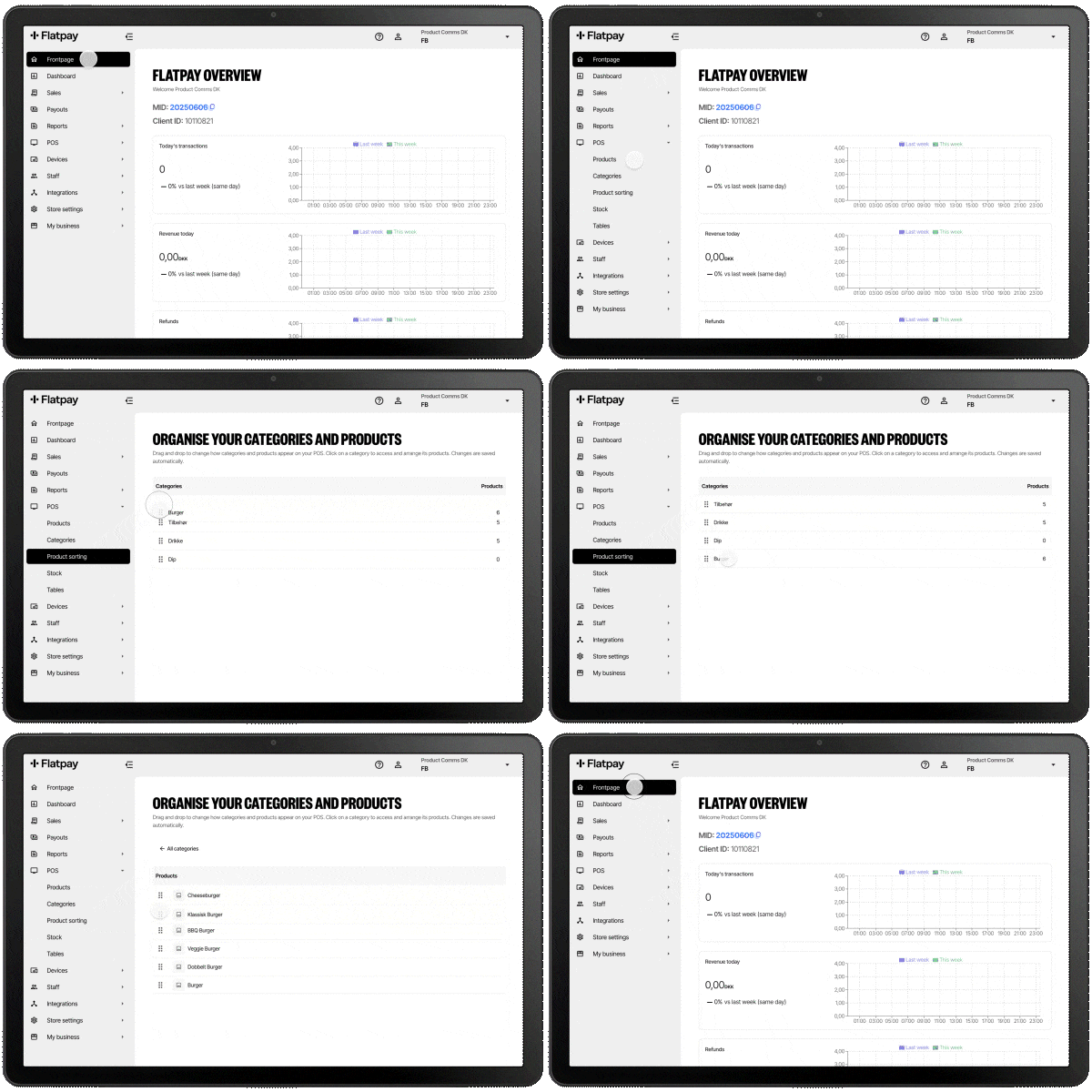
Sort How Categories and Products Are Displayed on Your POS
- Go to POS in the portal menu on the left.
- Go to Product Sorting.
- Drag and drop categories to change the order they are displayed on your POS.
- To change the order of your products, click a category and sort all products within that category.
- Changes are saved automatically.
Important
Remember to always refresh your POS whenever you are done making changes in the portal.
Need Further Assistance?
If you encounter any issues or have further questions, please contact our support team at:
+44 2080289990 or info@flatpay.co.uk
Was this article helpful?
That’s Great!
Thank you for your feedback
Sorry! We couldn't be helpful
Thank you for your feedback
Feedback sent
We appreciate your effort and will try to fix the article