This article explains the cash management page within your POS, and how to manage physical cash within your system.
The Cash Management page in POS makes it easier for your staff to log cash movements and keep track of the drawer balance throughout the day. It improves accuracy and compliance by providing a clear view of all cash added or removed from the drawer. Use it for logging cash taken out of the drawer for purchases or extra cash added to the drawer from tips.
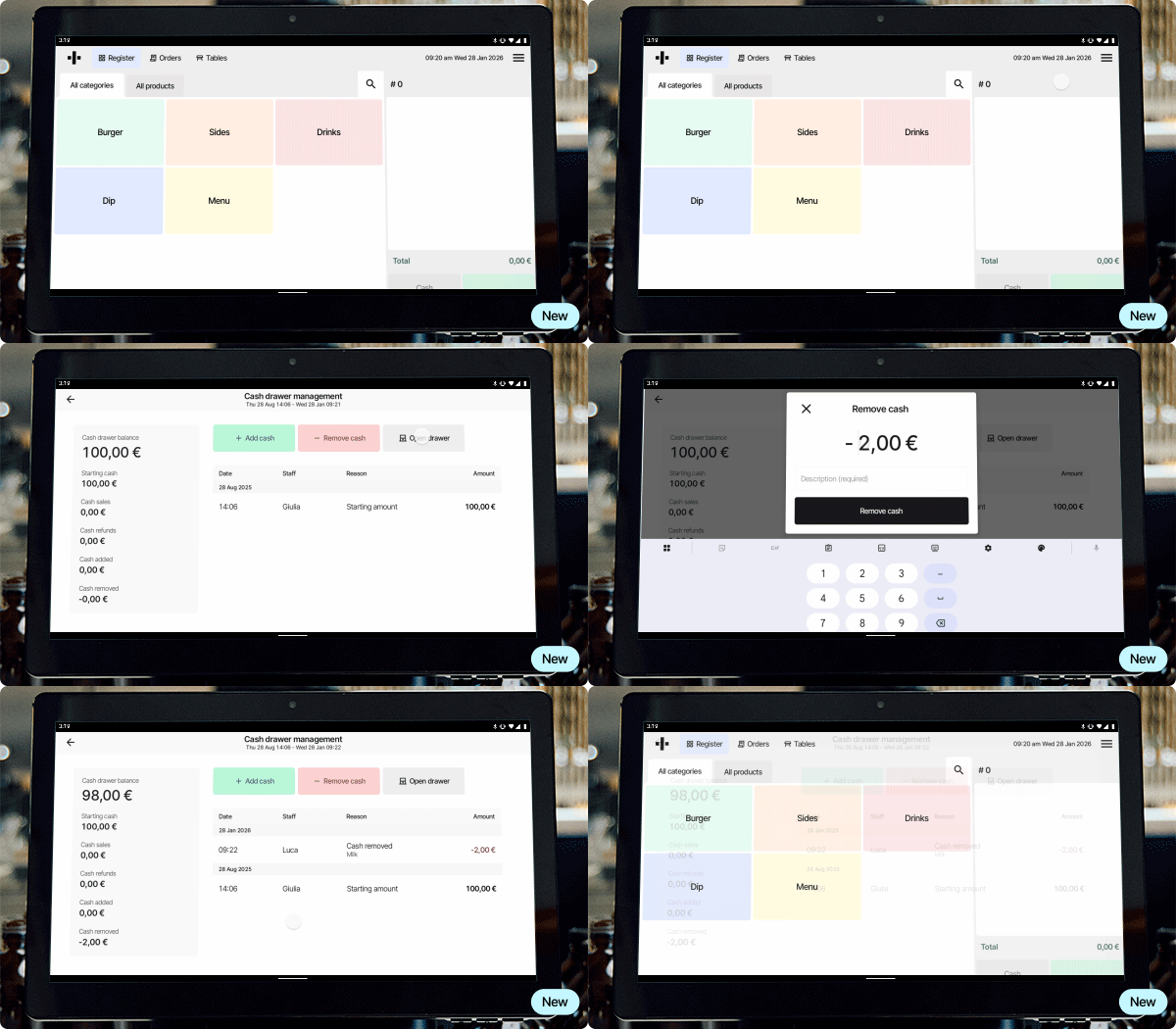
Where to find cash management on POS
- Open the POS burger menu in the top right corner.
- Tap Cash Management (second item under End of day).
- Alternatively, access it from the End of day flow banner.
Cash management page overview
The page includes:
- Cash summary for the current open day:
- Starting cash.
- Cash sales.
- Cash refunds.
- Cash added/removed.
- Current cash balance.
- Primary actions:
- Add cash.
- Remove cash.
- Open drawer.
- Log of today’s cash movements:
- Shows each add or remove action.
- Includes amount and description.
- Begins with starting cash entry at day start.
Adding cash
Use this to increase the cash in your drawer:
- Go to Cash management
- Tap Add cash
- In the pop-up:
- Enter the amount.
- Provide a comment (e.g., "Added extra change").
- Confirm to save
Removing cash
Use this to take out cash from the register:
- Go to Cash management
- Tap Remove cash (drawer opens automatically)
- In the pop-up:
- Enter the amount.
- Provide a comment (e.g., "Cash to bank").
- Confirm to save
Result: Cash balance updates, and the log records the entry as removed.
Connection to End of Day flow
Cash differences often arise when cash is not logged properly. By using Cash Management:
- The expected cash better matches the counted cash at closing.
- All cash actions are reflected in the printed End of day report.
Find your cash movement data in the portal
Once a day is closed, cash movement logs are also included in the End of day report + Cash management report.
- For End of day report: Go to Reports -> End of Day in the menu to the left. You can now see a full overview of the cash movement pr. day.
- For Cash management report: Go to Reports -> Custom reports -> Cash management report. This report can be used for monitoring cash movement across multiple days / weeks by using the filter option.
Adjust how starting cash is displayed when starting your day
There are different preferences on how to display existing cash amount in the drawer when starting your day. We've made it easy by making it customizable in the portal:
Go to Store settings -> Cash register in the portal menu. You can now decide how you want your starting cash to be displayed.
Was this article helpful?
That’s Great!
Thank you for your feedback
Sorry! We couldn't be helpful
Thank you for your feedback
Feedback sent
We appreciate your effort and will try to fix the article