TABLE OF CONTENTS
What are modifiers?
Modifiers are options you can add to a product to customise how it is ordered, prepared, delivered, or priced.
They let you offer more choice without creating a new product.
What can modifiers do for your business?
Modifiers help you manage product choices in a simple and structured way.
Upsell naturally by offering add-ons
Provide great customer experiences by capturing preferences or preparation choices
Keep orders clear and consistent, reducing mistakes
Create a smoother order flow on POS for you and your staff
Modifiers work for all types of businesses
While Modifiers offer great flexibility to any business, here's some inspiration based on business type.
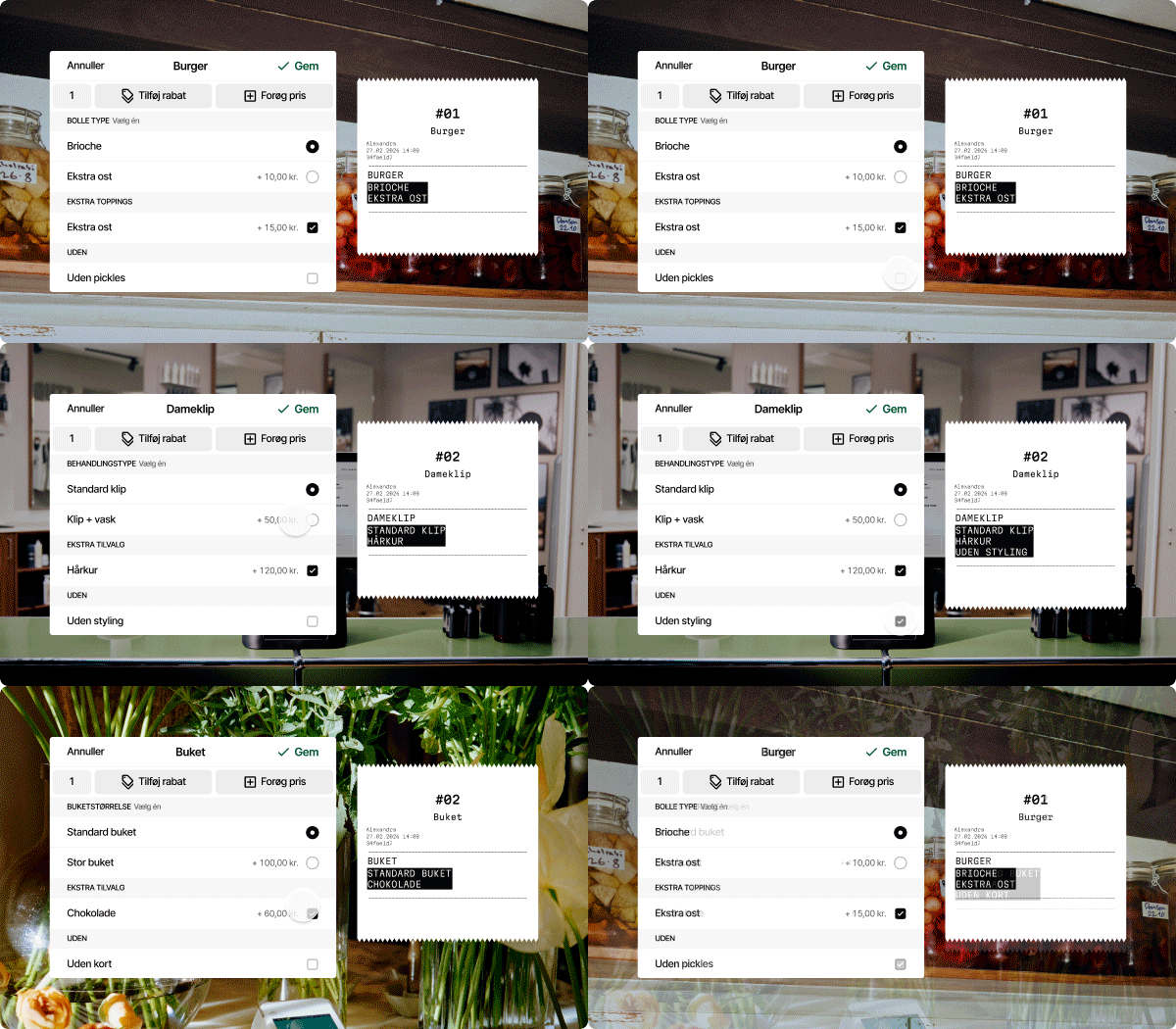
Set up modifiers in the Portal in 4 easy steps
To get started, log in to the Flatpay Portal and go to POS → Modifiers.
Step 1: Add a modifier group
Start by adding a modifier group in the top right corner.
A modifier group is a collection of modifiers that describe adjustments that can be made to a product.
Step 2: Add the individual modifiers
Add each modifier you want to the group and set a price increase if needed. You can also choose whether a specific modifier should be pre-selected.
Step 3: Choose rules for the group
This decides how the modifier group behaves.
You can decide:
- Whether the modifier group should be required - meaning that an option has to be selected when the product is put in the basket + Minimum amount of modifiers that need to be selected to continue.
- Auto-popup: Enabling this will always open the modifier-screen when a product is put in the basket. Use this when you want no required choices, but still want the modifier screen to open every time.
- Allow multiple selections makes it possible to select more than one option from the modifier group. You can then choose a max amount of modifiers that can be selected at the same time.
Step 4: Link the modifier group to products
Once the group is ready, link it to the products where it should be used. You can either find the product in the list, or search for it using the search bar.
You can also link modifiers groups from the product side
To do this:
- Go to POS → Products and choose a product you want to have modifiers
- Scroll down to the modifier groups section
- Find the relevant modifier group and link it
- Save your changes at the bottom
Once saved, that modifier group will be available whenever the product is added to an order.
Pro tips for building the best modifiers:
Spending a little extra time setting up your modifiers correctly from the beginning will pay off in the long run, as it helps reduce errors and makes daily order handling more efficient.
- Make sure your group focuses one clear decision for the customer: (doneness level, toppings, milk type)
- Choose a clear and easy to recognize display name on the POS and internally.
- You can add one or more modifier groups to a product, depending on how many choices you want to offer.
How modifiers appear on the POS
To make your freshly made modifiers appear on the POS, remember to go into your POS app-settings and sync data from the portal. They should now be added to your POS.
Now: When you add a product with a linked modifier group to the basket:
- If required/auto-popup is enabled in the modifier rules, the modifier screen opens as soon as the product is added.
- If required/auto-popup is disabled, the product is added to the basket first like normal. To view or add modifiers, tap the product in the basket.
You can now tailor each order to your customers’ preferences, create a more seamless experience, and unlock easy upsell opportunities.
On the receipt
Modifiers are shown under the main product on the receipt, making it easy to see exactly what was selected for each item and any additional cost.
Was this article helpful?
That’s Great!
Thank you for your feedback
Sorry! We couldn't be helpful
Thank you for your feedback
Feedback sent
We appreciate your effort and will try to fix the article